
Baby Monitor Signal Interference: Why Your Monitor Keeps Losing Connection and How to Fix It
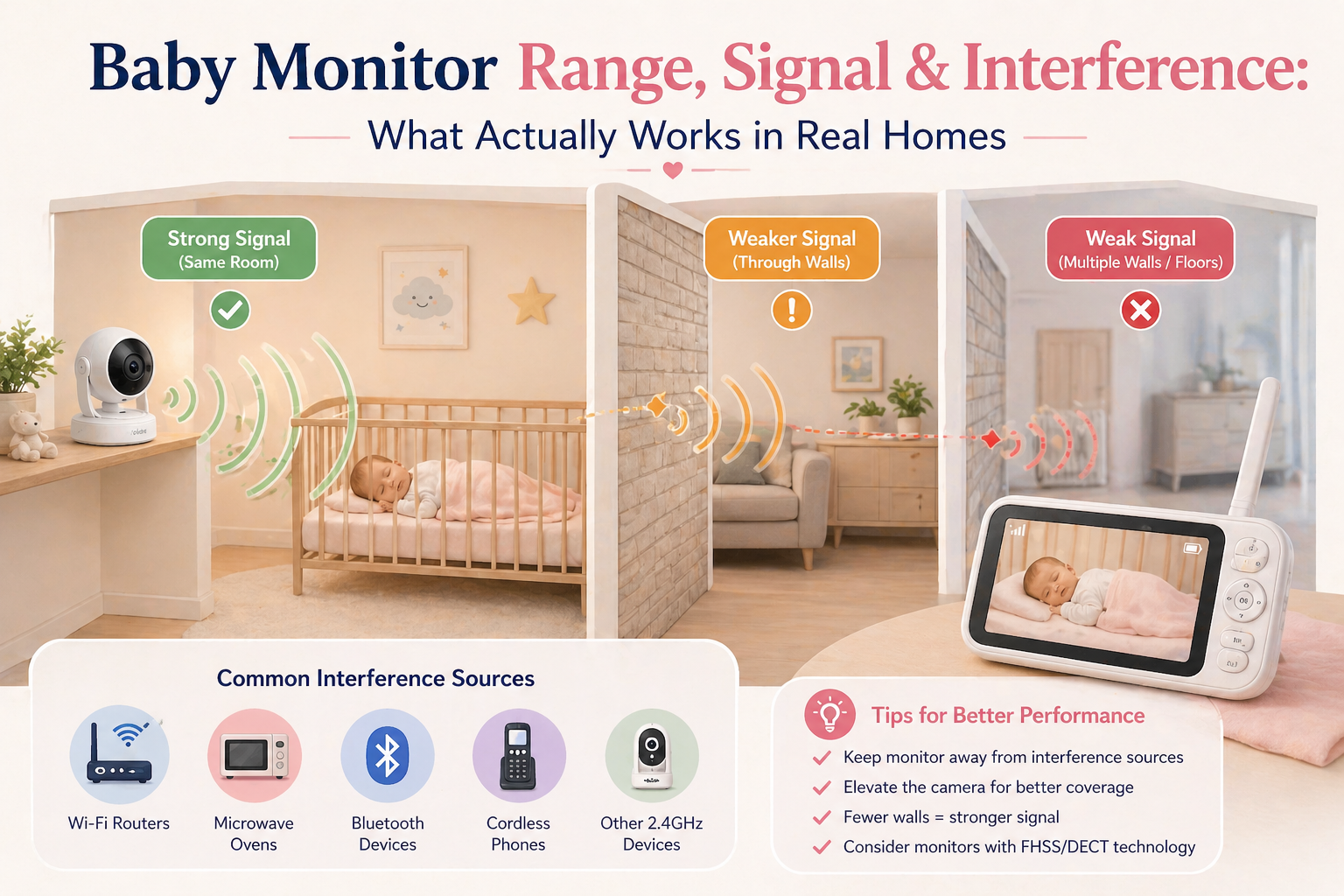
Baby monitor signal interference can cause frustrating connection drops, frozen video, crackling audio, and unexpected “No Signal” warnings. Whether you’re using a WiFi or non-WiFi baby monitor, understanding the most common causes can help you restore a more reliable connection.
A baby monitor should provide a dependable way to hear or see your baby from another room. But walls, nearby electronics, WiFi congestion, and device placement can all interfere with that connection.
The good news is that many baby monitor signal problems can be improved without replacing the entire system.
In this SafeBaby Lab troubleshooting guide, we’ll explain the most common causes of baby monitor interference, show you how to identify the problem, and walk through practical fixes for both WiFi and non-WiFi monitors.
Why Does My Baby Monitor Keep Losing Signal?
Baby monitors transmit audio, video, or both using wireless communication. When that communication becomes unreliable, you may experience:
- A “No Signal” or “Out of Range” warning
- Frozen or delayed video
- Audio cutting in and out
- Buzzing, crackling, or static
- Repeated disconnections
- Slow video loading in a smartphone app
- A parent unit that disconnects when you move between rooms
These symptoms can have different causes depending on the monitor’s technology.
For example, a dedicated non-WiFi monitor may lose its direct wireless connection when the parent unit moves too far away.
A WiFi monitor might remain close to the router but still disconnect because of network congestion, an unstable internet connection, or a problem with the manufacturer’s app or service.
The first step is identifying whether the problem involves wireless range, interference, power, or network connectivity.
7 Common Causes of Baby Monitor Signal Interference
1. The Parent Unit Is Too Far Away
Distance is one of the simplest explanations for connection problems.
Dedicated non-WiFi baby monitors have a maximum operating range between the camera and parent unit.
Manufacturers sometimes advertise outdoor ranges of several hundred feet, but indoor coverage is often considerably shorter because walls and floors obstruct wireless signals.
If your monitor works beside the nursery but disconnects in the kitchen or downstairs, distance and building materials are likely contributing factors.
What to try: Move the parent unit closer to the camera. If the connection immediately improves, check whether the problem is limited to certain rooms.
For a detailed explanation of advertised range versus actual household coverage, read our Baby Monitor Range Guide.
2. WiFi Router Interference
Some baby monitors operate in the 2.4 GHz frequency band, which is also widely used by household WiFi networks.
When multiple nearby devices share overlapping radio spectrum, interference or congestion may affect performance.
However, not every baby monitor uses the same wireless technology, and not every connection problem is caused by WiFi.
What to try:
- Check the manufacturer’s recommended separation from routers and other electronics.
- Move the parent unit away from crowded electronic equipment.
- If you have a WiFi monitor, check the signal quality at the camera’s location.
- Review supported router settings before changing wireless channels.
Avoid changing technical settings randomly. Some monitors require specific network configurations.
3. Thick Walls and Reinforced Concrete
Building materials can significantly affect wireless communication.
Drywall and lightweight partitions generally present fewer obstacles than reinforced concrete, brick, or large metal structures.
Reinforced concrete is especially challenging because metal reinforcement can attenuate radio signals.
If your monitor loses connection only when you move to another floor, the building structure may be the main cause.
What to try: Test the receiver in different locations on the same floor and then between floors. This helps identify where the connection becomes unreliable.
4. Nearby Electronic Devices
Depending on the monitor’s design and frequency, interference may come from other electronic devices.
Potential sources include:
- Wireless routers and access points
- Cordless phones
- Bluetooth equipment
- Microwave ovens
- Wireless security cameras
- Other baby monitors
Microwave ovens, for example, can interfere with some nearby 2.4 GHz wireless connections while operating.
What to try: Observe whether the problem appears when a particular device is switched on. If so, increase separation where practical and follow the monitor manufacturer’s guidance.
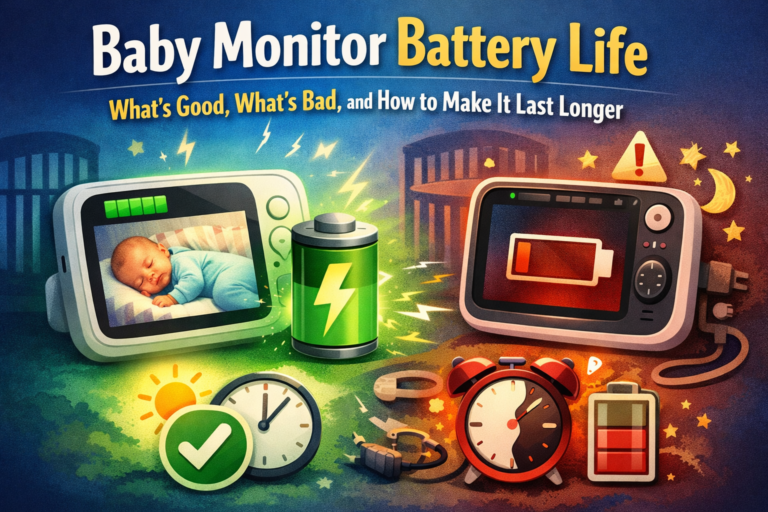
5. Low Battery or Power Problems
Not every apparent signal failure is caused by radio interference.
A depleted parent-unit battery, damaged charging cable, unreliable power adapter, or loose connection may cause unexpected shutdowns or interruptions.
Most baby monitor cameras require continuous external power, even when the parent unit has a rechargeable battery.
What to try: Check battery indicators, charging behavior, cables, and power connections. Use only compatible power accessories approved by the manufacturer.
Never place charging cords within reach of the crib.
6. Outdated Firmware or Software
WiFi monitors and some advanced dedicated systems may receive firmware updates.
Manufacturers sometimes release updates to improve stability, compatibility, security, or other functions.
An outdated app or firmware version may contribute to certain connection problems.
What to try: Check the manufacturer’s official support resources for your exact model and follow its update instructions.
Do not install firmware intended for a different device.
7. Router, Internet, or Cloud-Service Problems
This applies primarily to WiFi baby monitors.
A WiFi camera may depend on several separate components:
- The camera’s wireless connection to the router
- The router and local network
- Internet connectivity, when required
- The manufacturer’s remote-access service
- The smartphone app
A failure at any required stage may interrupt remote viewing.
Some WiFi monitors support local viewing without internet access, while others require an internet connection for certain features.
Check your product’s documentation rather than assuming all WiFi monitors behave the same way.
Baby Monitor Troubleshooting: Quick Diagnosis Table
Use the table below to narrow down the most likely cause of your connection problem.
| Symptom | Possible cause | First thing to try |
|---|---|---|
| No signal in distant rooms | Range limitation or obstacles | Move parent unit closer |
| Connection drops between floors | Floor construction | Test on the same floor |
| Video freezes but device stays powered | Wireless congestion or network problem | Check connection quality |
| Buzzing or crackling audio | Interference or audio hardware issue | Move away from nearby electronics |
| Monitor disconnects during charging | Power or charging problem | Check approved adapter and cable |
| WiFi app works intermittently | Router, internet, app, or service issue | Check network and service status |
| Monitor disconnects everywhere | Pairing, firmware, power, or hardware issue | Follow official troubleshooting steps |
These are diagnostic possibilities, not confirmed causes. Different models may show similar symptoms for different reasons.
How to Fix a Baby Monitor That Keeps Losing Signal
The following troubleshooting sequence can help you identify the source of the problem without making unnecessary changes.
Step 1: Test the Monitor Near the Nursery
Bring the parent unit into the same room as the camera, while maintaining safe equipment placement.
Check whether the connection becomes stable.
If the monitor works reliably nearby but disconnects elsewhere, the issue may involve distance, obstacles, or interference.
If it disconnects even at close range, investigate power, pairing, software, or hardware issues.
Step 2: Restart the System
Follow the manufacturer’s instructions for restarting the baby unit and parent unit.
For WiFi monitors, restarting the router may also help when network connectivity is involved.
Allow the devices to reconnect fully before testing again.
Step 3: Check Power and Battery Levels
Confirm that the camera is receiving reliable power.
Check the parent unit’s battery level and charging behavior.
Inspect cables for visible damage without attempting unsafe electrical repairs.
If a component appears damaged, stop using it and contact the manufacturer.
Step 4: Reduce Nearby Wireless Interference
Move the parent unit away from crowded electronic areas.
Check whether the manufacturer recommends a minimum separation from routers or other wireless equipment.
If the problem happens only when certain appliances operate, note that pattern.
Step 5: Test Different Rooms
Walk through your home with the parent unit and observe where the connection becomes unreliable.
This can help distinguish general device problems from location-specific coverage issues.
For example, if the monitor works throughout the ground floor but disconnects upstairs, floor construction may be affecting the signal.
Step 6: Check Pairing and Connection Settings
Some dedicated monitors require the camera and parent unit to be paired.
If pairing has been lost, follow the official instructions for your specific model.
For WiFi monitors, verify that the camera is connected to a compatible wireless network.
Step 7: Check for Updates
Consult the manufacturer’s support website or app for available firmware updates.
Install only official updates intended for your exact model.
Step 8: Contact Manufacturer Support
If the monitor still disconnects at close range with stable power and correct settings, the problem may involve a defective component or another model-specific issue.
Contact the manufacturer before purchasing replacement equipment.
Non-WiFi Baby Monitor Keeps Losing Signal: What Is Different?
A dedicated non-WiFi baby monitor typically connects its camera directly to a parent unit.
Unlike many WiFi cameras, it does not need a home router or internet connection for local monitoring.
This removes several potential network-related failure points.
However, non-WiFi monitors can still experience:
- Wireless interference
- Limited range
- Connection loss through thick walls
- Pairing problems
- Low-battery warnings
- Hardware faults
FHSS and DECT Connections
Some non-WiFi baby monitors use frequency-hopping spread spectrum (FHSS), while certain audio monitors use DECT technology.
FHSS systems change operating frequencies according to a coordinated pattern, which can help manage some forms of interference.
DECT uses dedicated wireless communication standards and frequency bands, depending on the region.
Neither technology guarantees an interference-free connection.
Their performance depends on the implementation and surrounding environment.
When Should You Consider Replacing Your Monitor?
If your current monitor repeatedly loses connection in essential locations despite following the manufacturer’s troubleshooting guidance, a different system may be more suitable for your home.
Look beyond the advertised maximum range.
Consider connection-loss alerts, battery life, audio clarity, camera reliability, and return policies.
Our Best Baby Monitor Without WiFi buying guide compares dedicated monitoring options and explains the features worth considering before making a purchase.
WiFi Baby Monitor Keeps Disconnecting: Additional Fixes
WiFi baby monitors introduce network-related variables that dedicated monitors may not have.
Check WiFi Coverage in the Nursery
A strong WiFi signal in the living room does not guarantee reliable coverage in the baby’s room.
Use your router’s management interface or other supported tools to check whether the camera has a stable connection.
Check Network Compatibility
Some WiFi baby monitors support only particular wireless bands or security configurations.
For example, certain models require a compatible 2.4 GHz network.
Consult the manufacturer’s specifications before changing router settings.
Review Network Congestion
Multiple connected devices, overlapping neighboring networks, and other radio traffic can affect wireless performance.
A compatible mesh network or better access-point placement may improve coverage in some homes.
Check Internet and App Availability
If local WiFi connectivity appears normal but remote viewing fails, check whether your internet connection and the manufacturer’s required services are operating.
Do not assume the camera is defective before checking these dependencies.
Keep Security in Mind
Use strong, unique account passwords, enable multifactor authentication where supported, and keep the device’s software updated.
Avoid disabling important router security features merely to establish a connection.
Why Does My Baby Monitor Video Freeze?
Frozen video can occur for several reasons.
For dedicated monitors, the cause may be a weak wireless link, interference, or device malfunction.
For WiFi monitors, video freezes may also result from insufficient network bandwidth, latency, software problems, or temporary service interruptions.
What to Check
First, determine whether audio continues when the video freezes.
Then check whether the problem occurs only in particular rooms or at particular times.
Restart the system according to the manufacturer’s instructions and check for available updates.
If freezing persists even with the receiver close to the camera, contact support.
Important: A frozen image is not a reliable indication of your baby’s current condition. Check your baby directly whenever monitoring is uncertain.
Why Does My Baby Monitor Make Buzzing or Static Noises?
Unusual audio may come from wireless interference, microphone or speaker problems, power accessories, or other electronic noise.
The exact cause depends on the monitor.
Try moving the receiver away from nearby electronics and checking whether the sound changes.
If the noise occurs continuously at close range, inspect the approved power setup and consult the manufacturer’s troubleshooting instructions.
Do not open or modify the monitor’s electrical components.
How to Prevent Future Baby Monitor Connection Problems
Once your monitor is functioning normally, a few habits can help reduce recurring issues.
Keep the Camera in a Safe, Consistent Location
Avoid frequently moving the baby unit unless necessary.
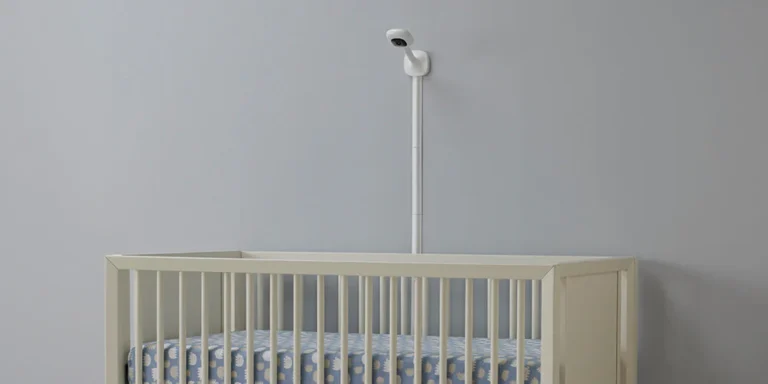
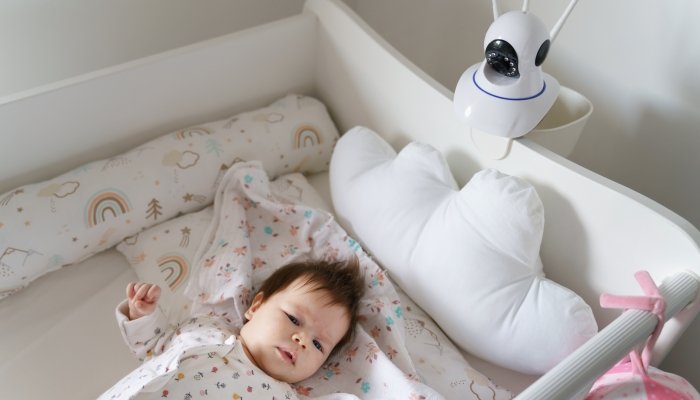
Follow the manufacturer’s installation guidance and keep the monitor and its cables away from the crib.
Charge the Parent Unit Regularly
For rechargeable receivers, maintain sufficient battery charge and monitor battery-health changes over time.
Pay Attention to Connection Alerts
Familiarize yourself with the monitor’s out-of-range or disconnection warning.
Check whether it is audible, visual, or app-based.
Maintain Compatible Software
For connected monitors, keep the official app and firmware updated when recommended.
Recheck Coverage After Moving Furniture or Equipment
Major changes in room layout, new wireless equipment, or moving the camera can affect reception.
Repeat a simple household coverage check when your setup changes.
Baby Monitor Safety: What Parents Should Know
Wireless reliability is important, but safe installation is even more important.
The U.S. Consumer Product Safety Commission warns about strangulation hazards from baby monitor cords.
Keep monitors and cords at least three feet (approximately 91 cm) away from a crib or other infant sleep space, and follow all manufacturer instructions.
Baby monitors also do not replace safe-sleep practices or appropriate adult supervision.
The American Academy of Pediatrics advises against relying on home cardiorespiratory monitors as a strategy to reduce the risk of sudden infant death syndrome (SIDS).
If your monitor disconnects or displays unreliable information, check your baby directly rather than assuming the last displayed image or audio is current.
Frequently Asked Questions
Why does my baby monitor keep saying “No Signal”?
Possible causes include excessive distance, thick walls, interference, lost pairing, or power problems. Start by checking whether the connection works when the parent unit is close to the camera.
Can WiFi interfere with a non-WiFi baby monitor?
Yes, some non-WiFi monitors operate in radio bands that overlap with household WiFi equipment. However, the likelihood and severity depend on the monitor’s technology and surrounding environment.
Why does my baby monitor disconnect at night?
Possible explanations include intermittent interference, power problems, weak wireless coverage, or network-related issues. Record when the disconnections happen and check whether they coincide with other devices or connectivity changes.
Does moving the router help baby monitor interference?
It may help in some situations, particularly if the router is very close to a susceptible monitor. For WiFi baby monitors, improving router placement may also strengthen the camera’s network connection.
Can thick walls cause baby monitor connection problems?
Yes. Brick, reinforced concrete, and metal structures can weaken wireless signals and reduce reliable coverage.
Will a WiFi extender fix a non-WiFi baby monitor?
Usually not. Standard WiFi extenders generally cannot extend proprietary direct wireless connections used by dedicated baby monitors.
Is FHSS completely interference-free?
No. Frequency hopping can help a system operate in challenging radio environments, but it does not guarantee uninterrupted communication.
Should I replace a baby monitor that frequently disconnects?
First follow the manufacturer’s troubleshooting steps. If the monitor remains unreliable in the locations where you need it, consider a different model with suitable coverage and dependable connection-loss warnings.
Final Thoughts
Baby monitor signal interference can be frustrating, but many connection problems have identifiable causes.
Distance, building materials, nearby electronics, power issues, and network connectivity can all affect reliability.
The most effective approach is to troubleshoot systematically: test the monitor at close range, check power, reduce interference, verify pairing or network settings, and follow the manufacturer’s support guidance.
If your monitor still cannot maintain a dependable connection where your family needs it, it may be time to consider another system.
For parents who prefer a dedicated local connection without relying on household internet access, explore our Best Baby Monitor Without WiFi comparison guide.
A dependable baby monitor isn’t one that never encounters interference. It’s one that provides reliable monitoring in your home and makes connection failures clear when they occur.
Sources and Further Reading
- VTech Official Support
- Philips Avent Baby Monitors
- Babysense Help Center
- U.S. Consumer Product Safety Commission
- American Academy of Pediatrics — HealthyChildren.org
Editorial transparency: This article provides research-based troubleshooting guidance using wireless communication principles, manufacturer documentation, and established safety recommendations. SafeBaby Lab has not conducted independent laboratory testing of the devices discussed here.

One Comment